Connect Claude to MoveRight
Use Claude (claude.ai, Cowork, or Claude Desktop) to look up jobs, run reports, check event status, and manage moves — all through the Model Context Protocol (MCP). Setup takes about 2 minutes.
What is MCP?
The Model Context Protocol (MCP) is an open standard that lets AI assistants like Claude securely connect to external tools and data sources. When you connect Claude to MoveRight via MCP, Claude can:
- Look up jobs by code, customer name, or status
- Run and view operational reports
- Check calendar event details and statuses
- View charges, invoices, and transactions
- Report issues straight to the Move Right dev team
Authentication uses OAuth 2.0 — you'll log in with your MoveRight credentials (password or magic link) in a browser window. No API keys or tokens to manage.
Prerequisites
- You must have logged in to MoveRight at least once. If you've never logged in to moveright.app, your account won't be linked to the authentication system and Claude won't be able to connect. Log in at moveright.app first, then come back here.
- A MoveRight account with an employee or admin role (customers cannot use MCP)
- Claude on claude.ai, Claude Cowork, or Claude Desktop — a Pro/Max/Team plan is required for custom connectors
Need the credentials? Log in to MoveRight → click your avatar → Account → scroll to Connected Applications → click New Connection → choose Claude. The setup wizard will give you the exact config with copy buttons.
Connect Claude to MoveRight
These steps are the same in claude.ai and Claude Cowork (and they work the same way in Claude Desktop).
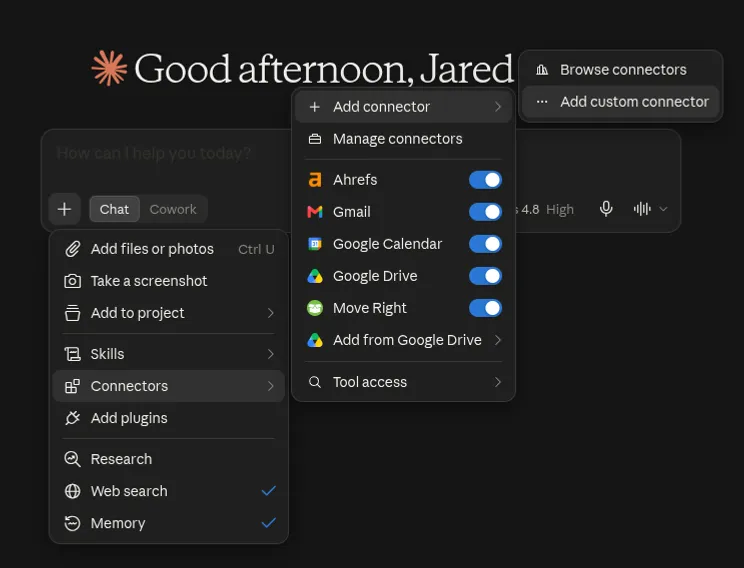
Step 1 — Open a new chat and click the + button
Start a new chat in claude.ai (or Cowork). Click the + button to the left of the chat input.
Step 2 — Add a custom connector
Hover over Connectors → Add connector → Add custom connector.
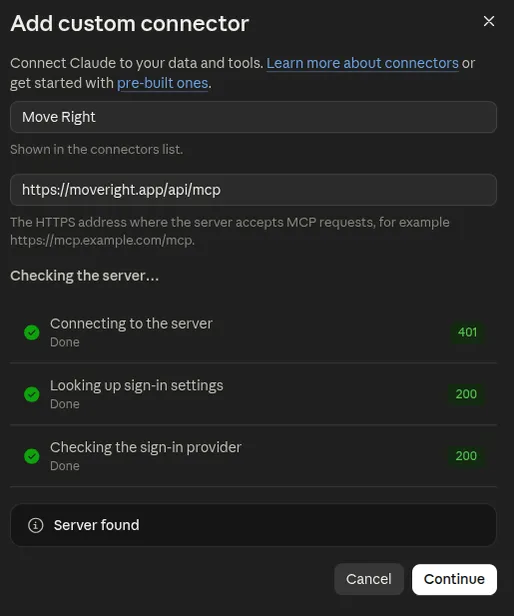
Step 3 — Enter the name and URL, then click Continue
In the Add custom connector window, fill in:
Move Righthttps://moveright.app/api/mcpClaude will check the server — you should see green checkmarks and Server found. Click Continue.
Step 4 — Use your own OAuth client
In the next screen, scroll down to the OAuth client section and select Use your own OAuth client. Paste in your Client ID and Client Secret from MoveRight.
c68f594d-6651-4da9-ab83-f4cb2ba86961BKi701asW-Ju9TX1lLNm0tDrKObGg4iPppJcPWw5kbQ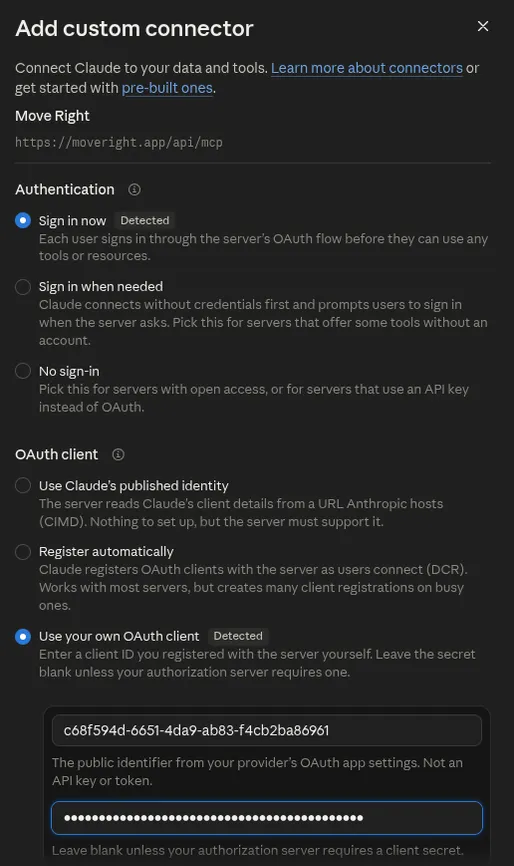
Step 5 — Click Add, then log in to Move Right
Click Add in the top right. A browser window will open for authorization — log in to Move Right using your password or request a magic link by email. Once you're logged in, you'll be redirected back to Claude and the connector is connected.
Step 6 — Make sure the connector is on
In your chat, open the + menu → Connectors and make sure Move Right is toggled on. Then you're ready to go.
Try It Out
To confirm the connector is working, ask Claude a few questions. Here are some good starters — Claude will call MoveRight tools and answer with live data from your zone:
- "Find the 5 most recent jobs that came in and summarize them for me."
- "Pull an example report of my jobs for today."
- "Build me a nice-looking report of my jobs for the day, and call out any red flags."
- "Find job
PHX-XQI-ZQBand walk me through what's happened on it so far." - "What's on the schedule for tomorrow?"
- "The estimate template tax breakdown looks wrong on one of my jobs — report it to the Move Right dev team."
If Claude answers with real job and schedule data, you're connected. If it says it can't reach MoveRight, see Troubleshooting below.
Troubleshooting
"Authorization with Move Right failed"
This usually means your MoveRight account doesn't have an employee or admin role, or your account hasn't been linked to the authentication system yet. Make sure you've logged in to MoveRight at least once, and contact your MoveRight administrator to verify your account has the correct role and permissions.
"Role required" or "Current zone not set"
Your MoveRight user may have duplicate accounts (e.g. a customer profile and an employee profile with the same email). Contact support to have the accounts consolidated.
"Invalid redirect_uri"
The redirect URI Claude uses (https://claude.ai/api/mcp/auth_callback) must
be registered with our auth provider. This is already configured — if you see this error,
it may be a temporary issue. Try again, and if it persists, contact support.
Connector doesn't show up or Claude says it can't reach MoveRight
Open the + menu → Connectors and confirm
Move Right is toggled on for the chat. If it still doesn't work, refresh
the page (or restart Claude Desktop) and try again. Also double-check that the MCP Server
URL is exactly https://moveright.app/api/mcp.
Need more help?
Contact MoveRight support at support@moveright.app or through the in-app chat.